
 Drastic Technologies has provided tools and solutions for Adobe editor workflows for decades, and expands on this relationship with the release of the FlowCaster Live Review UXP Panel. The panel is available for free, but it requires a licensed install of FlowCaster software to run. The UXP Panel replaces the CEP Panel for Adobe 2026+.
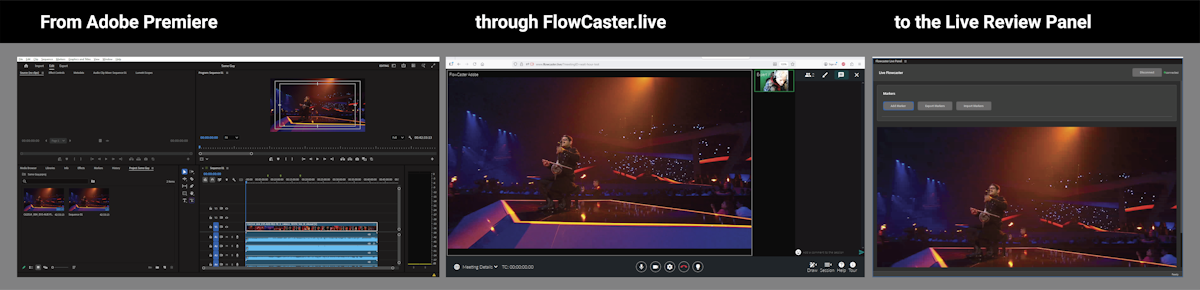
The FlowCaster Live Review Panel is an Adobe UXP Extension Panel, a web application using a stack of technologies known as Unified Extensibility Platform (UXP), which is a new architecture that provides commonly used APIs across different Creative Cloud applications. The panel provides real time feedback between Adobe editors (Premiere, After Effects etc.) and Drastic applications including FlowCaster, and the flowcaster.live site.
This UXP Panel is available for Adobe 2026. If you are running an earlier version of Adobe (2025 and prior), please review the Adobe CEP Live Review Panel.
The below instructions assume you have a licensed install of FlowCaster software on the system, and are familiar with our FlowCaster.live remote collaboration site.
Install the Panel
The panel is available for immediate download, at: https://www.drastic.tv/downloads/flowcaster/live.flowcaster.panel_premierepro.ccx
Once it has been downloaded you can install it by double clicking on the .ccx from your downloads folder.

When you double click, this opens the Creative Cloud interface, where it informs you this is a non marketplace plugin, and you should proceed accordingly.
Click Install to begin the install.
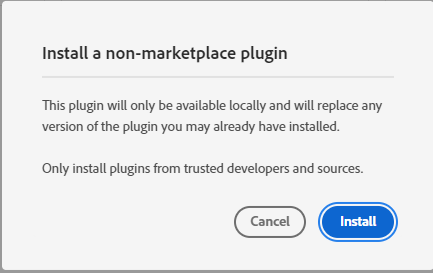
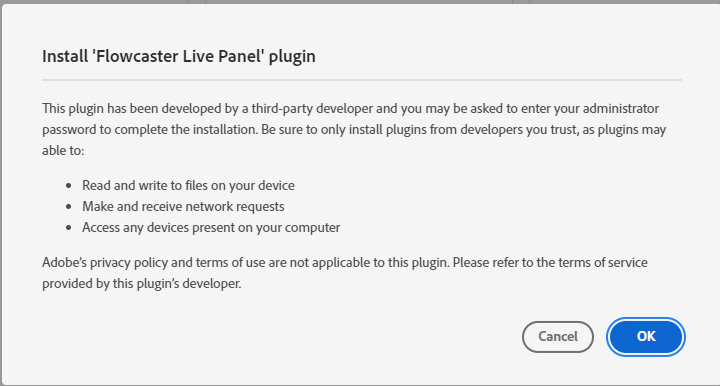
You will be prompted to confirm the plugin can access your system, and use the relevant features of the application.
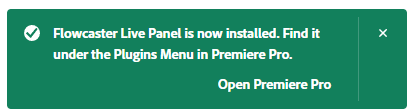
A successful installation will display the below message, and let you know where to open the plugin.
How to Use the FlowCaster UXP Panel
Start up a FlowCaster.live session. This will be the session you are going to send the output of Premiere to.

Run the plugin from Adobe Premiere, under Window | UXP Plugins | FlowCaster Live Panel | FlowCaster Live Panel.
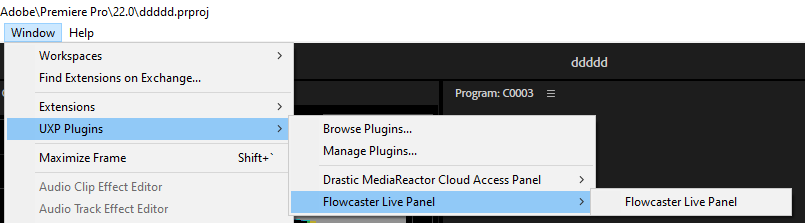
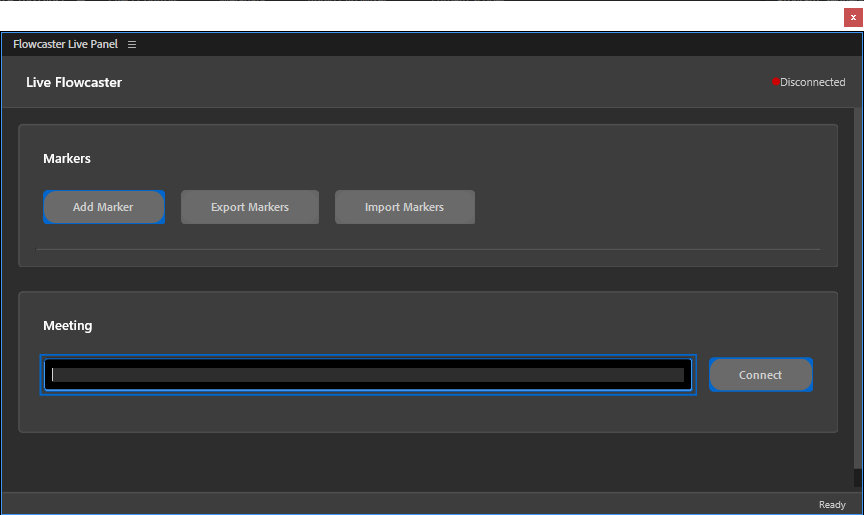
Running the plugin opens the window, in a disconnected state.

How to Connect
Open the UXP Panel a bit wider so you can see what's going on. Here is Premiere, and the Panel on the right, still disconnected.
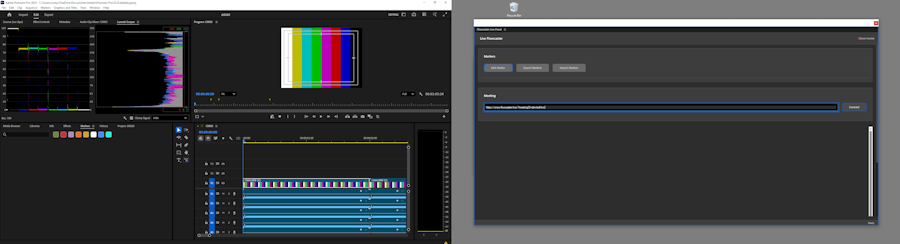
The Adobe application will need to be set up to use the plugin. Go to Edit | Preferences | Playback.

Set the Primary Audio Device to FlowCaster Transmitter.
Set the Transmit Device Playback to FlowCaster Transmitter.
Click the FlowCaster Configuration gear (arrow on the right). This opens the FlowCaster Configuration dialog.
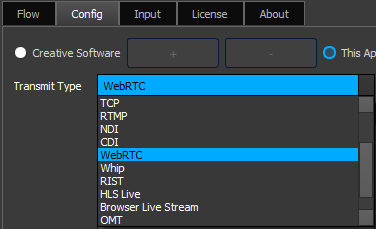
Use the Transmit Type pulldown menu to set the Transmit Type to WebRTC.

Copy the FlowCaster.live session URL from your browser and paste it into the URL field.
Press OK.
At this point, you should see the output of Adobe in the FlowCaster session. The FlowCaster Adobe screen is what the user will connect the UXP Panel to.
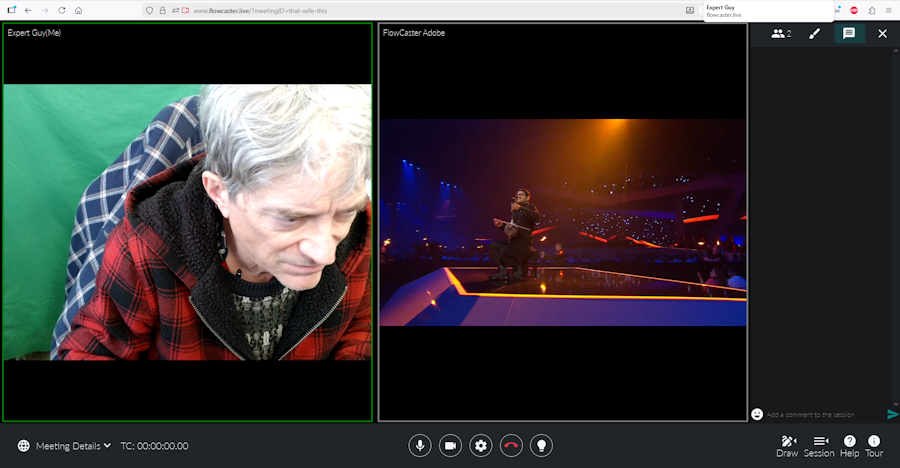
Paste the FlowCaster.live session URL into the Meeting field of the Live Review Panel, and press Connect.
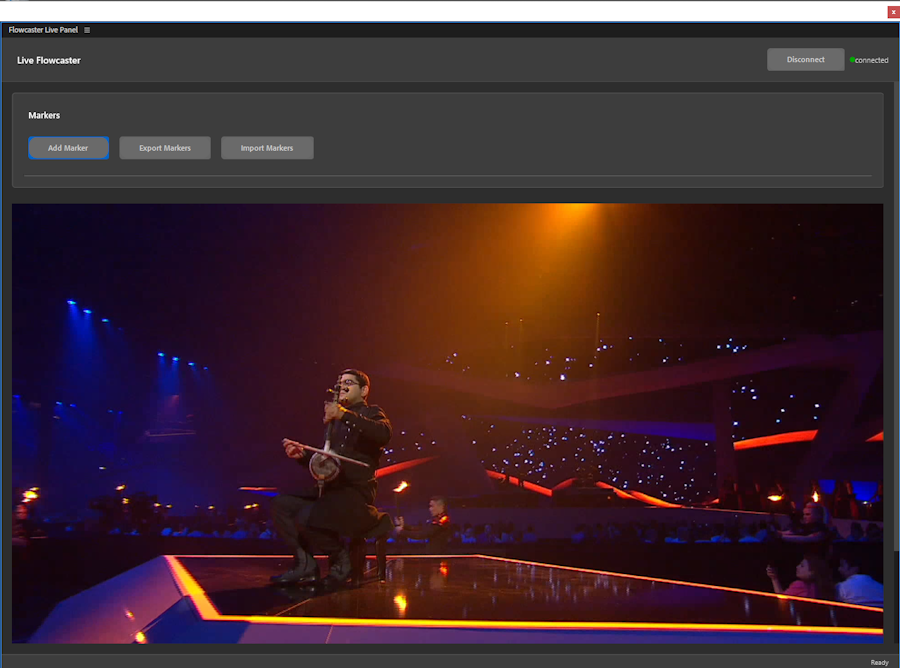
If connection has been successful, the Meeting section will disappear, and the output of FlowCaster.live will be displayed in its place.
You will also be able to see drawings that are made in the Session, directly in the UXP Panel.
Trademarks, Registered Trademarks, and Copyrights
Trademarks, Registered Trademarks, and Copyrights
Adobe, Inc. - Adobe, the Adobe logo, Adobe Premiere, Adobe After Effects, Creative Cloud, Frame.io, and Iridas are either registered trademarks or trademarks of Adobe in the United States and/or other countries.aescripts + aeplugins - ZXPInstaller Copyright aescripts + aeplugins 2023
Avid Technology, Inc. - Avid Media Composer®, Avid MediaCentral®, Avid Interplay®, and Avid NewsCutter® are either trademarks or registered trademarks of Avid Technology, Inc. or its subsidiaries in the United States and/or other countries.
Blackmagic Design Pty. Ltd. - DaVinci Resolve, DaVinci Fusion, UltraStudio, DeckLink, Intensity Pro 4K, UltraScope, and RED are either trademarks or registered trademarks of Blackmagic Design Pty. Ltd. or its subsidiaries in the United States and/or other countries.
Drastic Technologies, Ltd. – trademarks specified here.
All other trademarks are the property of their respective owners.